Back to Blog
Practical guides
Published Oct 9, 2026
Last verified Oct 9, 20268 min read
Turn your own photo into an editable image prompt
An image-to-prompt tool helps turn a visual reference into words you can edit. It cannot recover the exact prompt used to create an image, identify an unknown person or prove who owns a photograph. Start with a photo you are allowed to use and a clear aim: describe what is visible, then choose what a new image should change.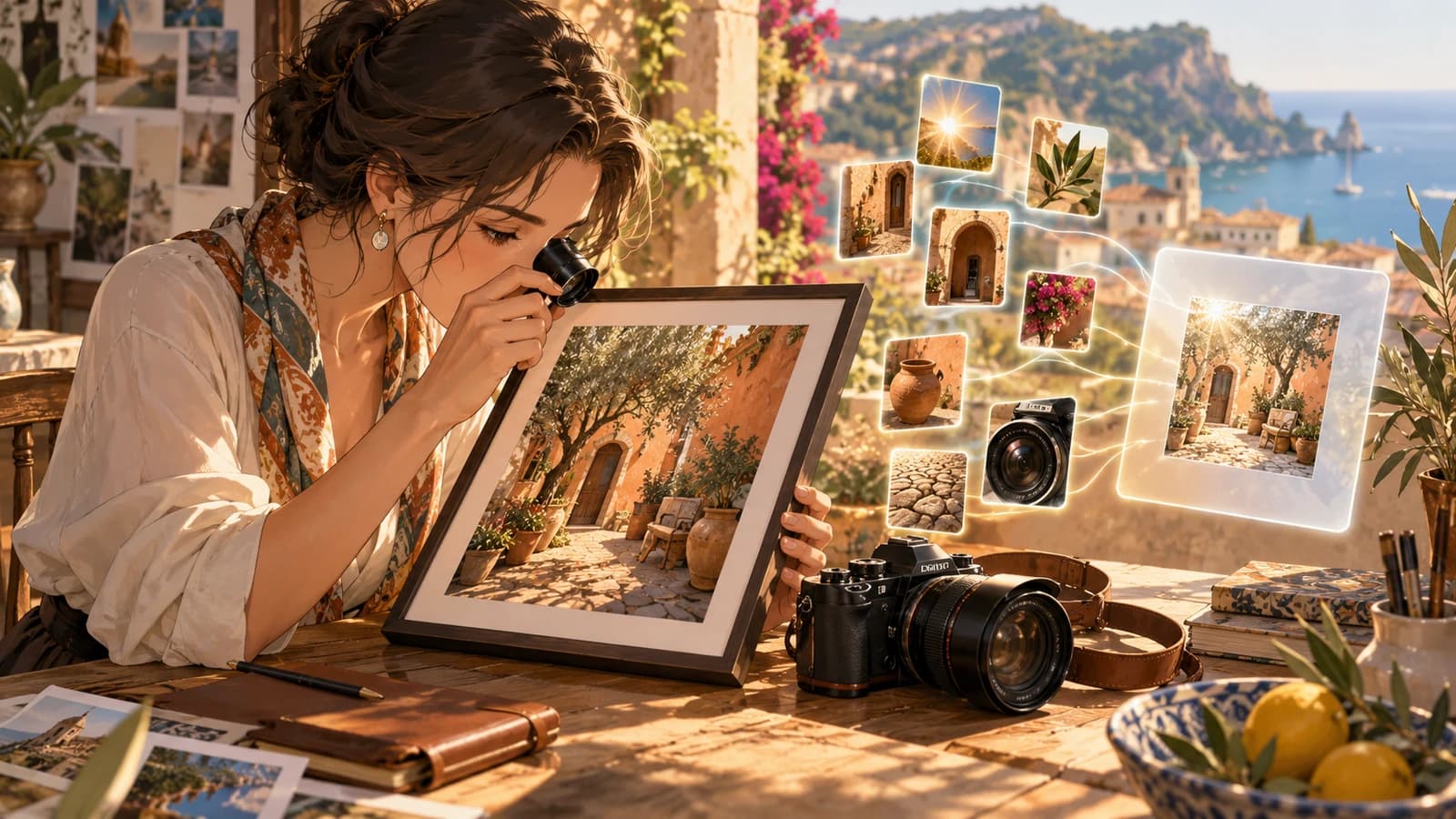
Key takeawayAn image-to-prompt tool helps turn a visual reference into words you can edit. It cannot recover the exact prompt used to create an image, identify an unknown person or prove who owns a photograph. Start with a photo you are allowed to use and a clear aim: describe what is visible, then choose what a new image should change.
An image-to-prompt tool helps turn a visual reference into words you can edit. It cannot recover the exact prompt used to create an image, identify an unknown person or prove who owns a photograph. Start with a photo you are allowed to use and a clear aim: describe what is visible, then choose what a new image should change.
Choose the dedicated image tool
The linked ModelRush Image to prompt tool uses Papaya 1.0 through a signed-in image analysis route. The ordinary public Papaya text API is not an image-input API. Use this tool rather than pasting a photo into the ordinary chat model and expecting the same behavior. Select the output language before reviewing the cost.
The tool accepts PNG, JPEG and WebP source files up to 50 MiB. The browser prepares a bounded analysis copy of at most 1 MiB; image checks also bound dimensions to 16–8,192 pixels per side and 25 million pixels. Large photos may be resized or recompressed. That helps fit the request but can remove small details. Keep the original locally and use the displayed preview to judge whether important features are still visible. A remote image link, PDF, SVG or GIF is not a substitute for a supported uploaded source in this route.
Separate visible facts from your creative choices
Before paying, fill the first half of the worksheet yourself. List the subject, position in the frame, background, lighting, main colors and details to leave out. Do not infer a person's identity, a brand, a location or unreadable text from appearance alone. If the task is copying visible words from a screenshot, choose OCR instead of this prompt-description tool.
Review the maximum amount shown after selecting the image. Checking that amount is separate from the paid Generate prompt action. Changing the image or output language requires a fresh amount check. The public Papaya reference rates checked on 9 October 2026 are $0.165 per million input tokens and $0.495 per million output tokens. Image size is not a fixed dollar price, and prompt words are not tokens. The shown hold is a temporary upper bound, not the final usage charge. Use current displayed rates: https://modelrush.ai/models/papaya-1.0 and https://modelrush.ai/pricing.
Edit the description before reusing it
The returned prompt is editable. Compare each claim with the photo and remove invented accessories, uncertain labels or details that conflict with your brief. Keep the camera angle, color or light only if it helps the new task. Replace unwanted private details with neutral descriptions. The worksheet has separate columns for observed detail, returned wording and your final choice so that the result does not become a list of unexamined guesses.
The task result reports usage cost separately from the wallet debit. This text-generation route can carry small fractional-cent usage across runs; do not apply the per-task image-generation rounding rule to it. Inspect the completed record instead of assuming the maximum hold was spent.
A new image is a second paid decision
Copy the edited prompt, or use the handoff to image generation and inspect the selected model and its text limit. A prompt that fits this editor may be too long for another model. Select dimensions and review that model's current price before submitting a new paid image task. A useful description does not guarantee a matching generated image. This guide did not analyze a customer photo or run a paid image test.
Before you add credit
Open the linked tool and sign in or register. Check the selected model, your input, the current price and the available balance. If more credit is needed, use the payment options actually shown in your account. A task estimate is not a minimum top-up. Confirm the paid request yourself. After it finishes, check its status and settled charge before repeating it. This guide does not include a live generation test or a promise of free use.
Turn your own photo into an editable image prompt
| Visible feature / decision | Returned wording | Your checked final choice |
|---|---|---|
| Subject and position | ||
| Camera angle / framing | ||
| Background | ||
| Light / shadow | ||
| Colors / materials | ||
| Uncertain names or text | Remove unsupported claims | |
| Changes for the new image | ||
| Cost and handoff | Hold / usage / debit / separate image budget |
Related resources
Frequently asked questions
Does it recover the original prompt?
No. It describes the visible image and suggests wording. The exact original prompt cannot be established from the image alone.
Can the ordinary Papaya API accept my image?
The public text route is text-only. This guide uses the dedicated signed-in Image to prompt tool.
Which files can I choose?
PNG, JPEG or WebP sources up to 50 MiB. The tool prepares an analysis copy of at most 1 MiB and validates its dimensions.
Does checking the price analyze the photo with the model?
The dedicated flow checks the maximum first. The paid model request starts when you confirm Generate prompt.
Can it read every word or identify a person?
Do not rely on it for exact transcription or identity. Use OCR for visible text and independently check any uncertain claim.
Is generating an image included?
No. Image generation is a separate task with its own model, limits, price and confirmation.