Back to Blog
Product guide
Published Sep 15, 2026
Updated Sep 18, 2026Last verified Sep 18, 20266 min read
ModelRush Agent Is Here: A Step-by-Step Guide
Learn how to open your personal Agent, give it a complete task, review tool calls, and keep the resulting files—with a real image-generation example.
Key takeawayModelRush Agent turns a plain-language request into a tool-driven workflow while keeping files in a persistent workspace. Runtime, storage, media, and outbound data are included by plan; model API calls use prepaid credits separately.
ModelRush now includes a personal Agent: a persistent workspace where you can describe an outcome, let the Agent choose and call the right tools, and keep the files it produces. This guide walks through the full flow with a real image-generation task.
1. Choose a plan and open the Agent
Sign in to the ModelRush Dashboard, then choose Agent workspace in the sidebar. This opens the Agent management page in the Dashboard. Use Open Agent, marked with an external-link icon, to launch the Agent itself in a new browser tab.
Choose the capacity that matches your workload:
| Plan | Price | Runtime | Workspace | Media | Outbound data |
|---|---|---|---|---|---|
| Agent Basic | 30 days free, then $10/month | 40 hours/month | 1 GiB | 2 GiB | 10 GiB/month |
| Agent Pro | $50/month | 200 hours/month | 10 GiB | 50 GiB | 100 GiB/month |
| Agent Max | $100/month | Unlimited monthly runtime | 25 GiB | 100 GiB | 250 GiB/month |
The Agent Basic promotion is available to eligible new subscribers. A card is required, and the plan renews at $10/month after the 30-day trial unless canceled beforehand. Runtime is the time your personal container is active. Outbound data measures traffic sent from that container to the internet. Model API usage is not included in the membership fee and is charged separately from prepaid credits.
2. Start a session and describe the result
Open the Agent, create a new session, and write the outcome you want. Include the deliverable, constraints, preferred model when relevant, and where the result should be saved. You do not need to translate the job into individual API calls.
For this article, we used this prompt:
Create a lively ModelRush-homepage-style hero using the current ModelRush homepage artwork as the visual reference: premium semi-real anime / polished CG illustration, a glamorous obviously adult woman in her mid-to-late 20s in a spontaneous confident pose, a deep burgundy satin fashion dress, a vibrant neon Tokyo street at night, rain reflections, cherry blossoms, colorful bokeh, and a warm expressive face. Make it a 2560×1440 landscape image with an off-center subject and open space for blog text. Avoid a stiff studio portrait, black dress, plain backdrop, corporate stock-photo look, nudity, transparent clothing, text, logos, and watermarks. Use modelrush/wan2.7-image-pro if available and save it as outputs/modelrush-agent-homepage-style-hero.png.
That request anchors the result to the site's real visual language, establishes that the subject is an adult, asks for movement and environmental energy, sets creative and safety boundaries, and gives the Agent a precise deliverable.
3. Let the Agent call tools
The Agent inspected the available models, selected
modelrush/wan2.7-image-pro, submitted a 2560×1440 generation, waited for the result, and saved it to the workspace. The session shows the completed tool calls, model, Region, dimensions, runtime, and output path.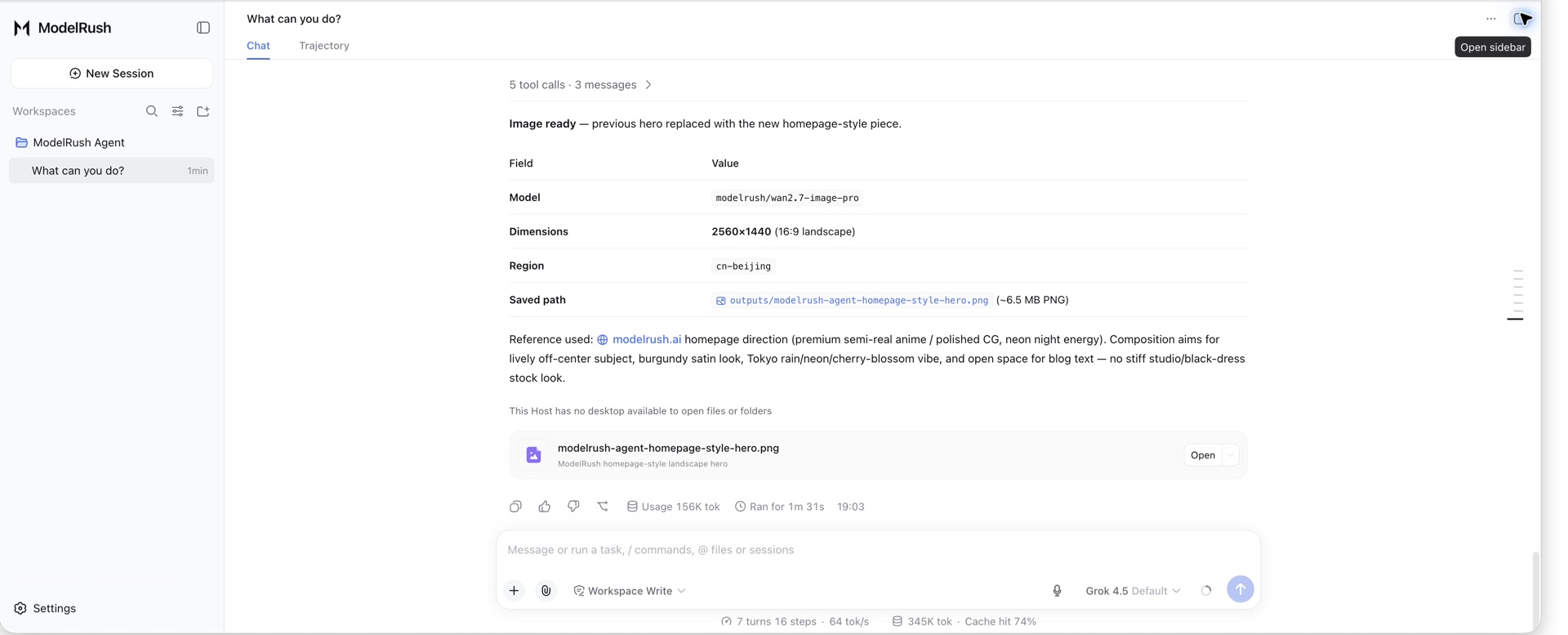
Actual English-language Agent session captured on September 15, 2026. It records the model, dimensions, Region, runtime, and saved workspace path; the complete output appears below.
For paid generation tools, review the model and parameters before allowing a high-volume job. Start with one output or a short clip, inspect the result, and then ask the Agent to scale the workflow.
4. Open, download, and continue from the file
The Agent saves deliverables inside its workspace. Open the file in the preview panel, download it when you need a local copy, or refer to its workspace path in the next message. This makes follow-up requests concrete: “crop this for a 16:9 hero,” “create three safer variations,” or “write alt text for this image.”
Here is the image produced by the session above:

AI-generated adult subject; not a real person. Generated with
modelrush/wan2.7-image-pro for this tutorial.5. Monitor the four resources that matter
The Agent page reports four independent resources:
- Runtime: how long the container is active during the billing month.
- Workspace storage: project files, instructions, code, and documents.
- Media storage: generated or uploaded images, video, and audio.
- Outbound data: bytes sent from the container to external services or downloads.
The Dashboard shows current usage and plan limits. Large downloads, package installs, external uploads, and repeated media transfers can consume outbound data even when the Agent is idle afterward. Model generation cost remains a separate prepaid-credit charge.
A reliable prompt pattern
For repeatable work, give the Agent five things in one message:
- Outcome: the exact file or answer you need.
- Inputs: filenames, URLs, or workspace folders it should use.
- Constraints: audience, dimensions, tone, safety, and things to avoid.
- Tools or models: a preference, plus permission to choose a supported alternative.
- Finish line: where to save the result and how to report completion.
Keep sensitive secrets out of prompts and files. Use approved credentials and the narrowest necessary access mode. For costly or irreversible work, ask the Agent to show its plan or run a small sample first.
Open your Agent workspace, or compare the current limits on the pricing page.