Back to Blog
Practical guides
Published Oct 9, 2026
Last verified Oct 9, 20268 min read
Extract text from a screenshot and check the result
A screenshot stores words as pixels. OCR gives you a text draft you can copy, but the useful result is the version checked against the screenshot. This guide starts with an existing screenshot and ends with editable, reviewed text. It does not generate an image or promise an exact reconstruction of a page layout.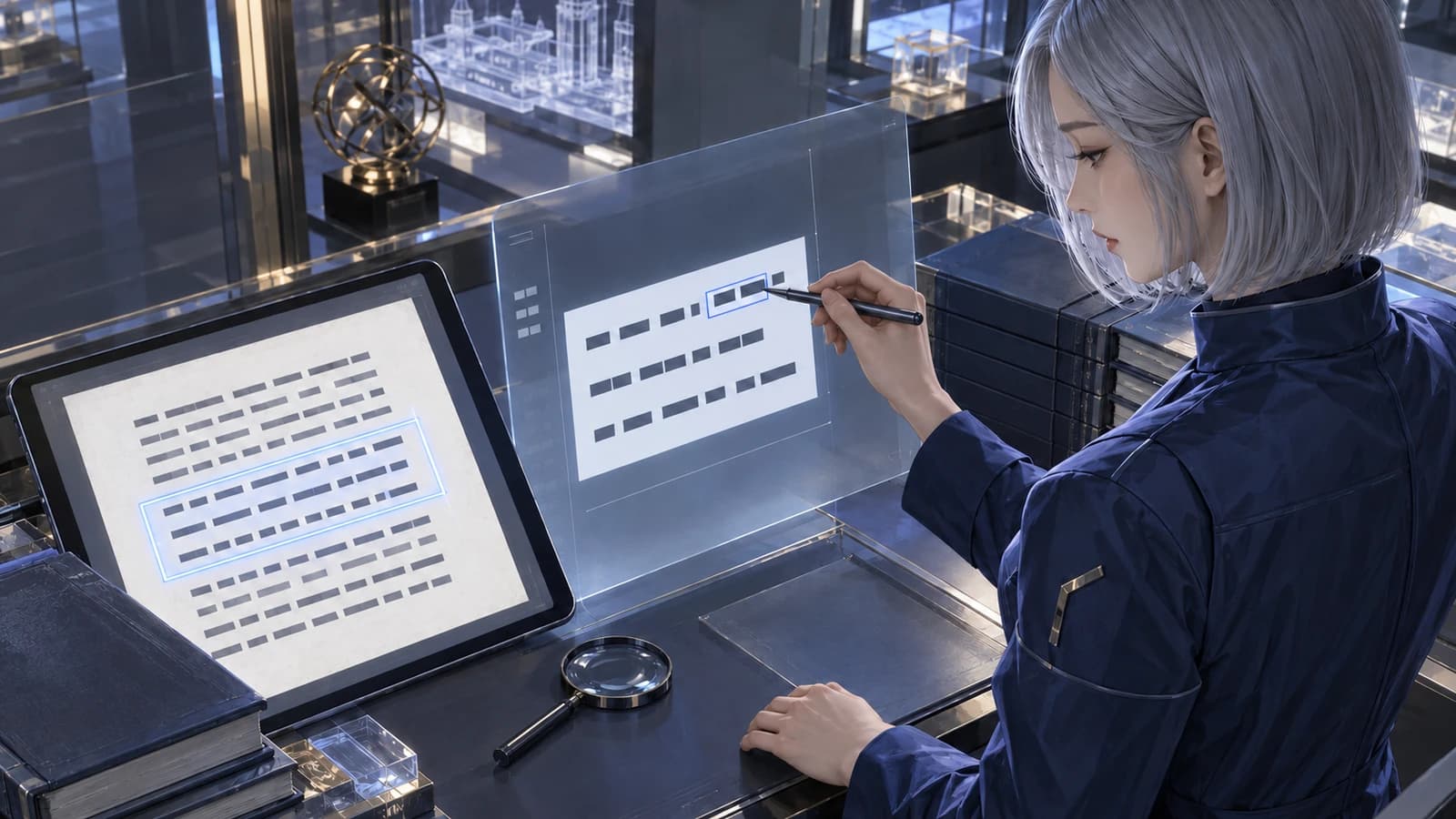
Key takeawayA screenshot stores words as pixels. OCR gives you a text draft you can copy, but the useful result is the version checked against the screenshot. This guide starts with an existing screenshot and ends with editable, reviewed text. It does not generate an image or promise an exact reconstruction of a page layout.
A screenshot stores words as pixels. OCR gives you a text draft you can copy, but the useful result is the version checked against the screenshot. This guide starts with an existing screenshot and ends with editable, reviewed text. It does not generate an image or promise an exact reconstruction of a page layout.
Prepare a readable screenshot
Use a PNG or JPEG with complete lines at a readable size. Crop away unrelated browser controls without cutting the first or last line. Keep a local original; if a long capture makes the letters tiny, split it into overlapping sections and number them. Include one shared line at each boundary so you can detect gaps and remove duplicates later. Do not assume enlarging a blurry image restores missing letter detail.
The current Grok OCR uploader accepts JPEG/PNG and shows a 30 MB upload cap. A valid image still needs to be readable and accepted by the processing service. This workflow takes one screenshot per request, not an entire PDF or a promise of automatic multi-page ordering. Remove private details that are not needed for the task before using the file.
Open OCR, not ordinary text chat
Use the exact link below for the signed-in OCR tool with Grok 4.5. The selected OCR tool supplies the image through its own browser route; the ordinary public text-only chat description is not a guarantee of image support in every API route. Upload a supported image or provide a direct accessible HTTPS image URL. A page that requires login, a drive preview or a local filesystem path is not that image URL. Keep the link accessible during the request.
Ask for the text in reading order without rewriting. You can use: “Extract the visible text in reading order. Keep line breaks where useful. Do not correct or complete unclear words; mark them [unclear].” This is a useful request, not a guarantee that the model will follow it perfectly. For columns or tables, specify the order you want and compare it with the original after completion.
Review the price before extracting
The public Grok 4.5 reference rates checked on 9 October 2026 are $2.20 per million input tokens and $6.60 per million output tokens. A screenshot is not priced by the number of characters you can see; image input and output text both affect usage. The displayed authorization can be higher than final usage. Review current model, amount and balance rather than multiplying image file size by a token price. See https://modelrush.ai/models/grok-4.5 and https://modelrush.ai/pricing. This guide did not run a paid extraction or verify an account-specific bill.
Build a checked text copy
Save the returned text unchanged first. Make edits in a second copy. Check reading order from top to bottom, especially when there are columns, sidebars, footnotes or a table. Compare every digit, decimal separator, currency sign, date, name, URL and negative word. A plausible number is not evidence that it was read correctly. Mark anything that cannot be confirmed from the screenshot.
Use the worksheet to record the screenshot section, raw output, corrected text and the visible evidence for each change. For tables, verify each value against its row and column; a right value in the wrong cell is still wrong. Remove overlapping duplicate lines only after confirming continuity. Keep the checked text as plain text or paste it into your own document editor.
If a region remains unreadable, obtain a sharper source or transcribe that part manually before paying again. Stop when repeated output cannot preserve the information you need. OCR is not a guarantee of perfect accuracy, identity verification or certified document transcription.
Before you add credit
Open the linked tool and sign in or register. Check the selected model, your input, the current price and the available balance. If more credit is needed, use the payment options actually shown in your account. A task estimate is not a minimum top-up. Confirm the paid request yourself. After it finishes, check its status and settled charge before repeating it. This guide does not include a live generation test or a promise of free use.
Extract text from a screenshot and check the result
| Screenshot section / field | Raw extracted text | Checked correction and evidence |
|---|---|---|
| Top and bottom lines | Both present | |
| Column order | Follow original order | |
| Names / dates | Check letter by letter | |
| Amounts / decimals / currency | Check character by character | |
| Table cell | Correct row and column | |
| URL / identifier | Check every symbol | |
| Unclear passage | Mark uncertainty; do not invent | |
| Final document / task cost | Save raw and checked copies; review settlement |
Related resources
Frequently asked questions
Does OCR recreate the original layout?
No exact layout is promised. Verify columns, tables, headings and reading order yourself.
Can I submit a full PDF here?
This guide uses one supported screenshot image per request. It does not establish full-PDF upload or multi-page processing.
Which screenshot formats should I use?
Use JPEG or PNG for this Grok OCR uploader, within the currently displayed size limit. Other image tools may accept different formats.
Why do I need the OCR tool instead of normal chat?
The dedicated signed-in route handles the image. The public text API description does not prove every chat route accepts images.
Can I trust prices and account numbers in the extracted text?
Check every important digit and separator against the screenshot. Keep uncertain values marked until verified.
What should I do if words are missing?
Check whether the crop or output ended early, compare section boundaries, and obtain a clearer source before another paid extraction.