Volver al blog
Flujo de trabajo
Publicado el 13 sept 2026
7 min de lectura
Novedades de ModelRush: escritura con IA, guiones gráficos e intercambio de rostros por lotes
Una guía práctica con capturas de las nuevas herramientas: redactar historias, planificar planos de vídeo y ejecutar intercambios de rostros y cabezas por lotes.
Conclusión principalEmpieza con una idea, revisa los detalles y genera cuando quieras. Las nuevas herramientas ofrecen textos editables, control de vídeo plano a plano y lotes que combinan cada origen con cada destino.
Esta actualización te da más espacio para desarrollar una idea antes de producir el resultado final. Puedes redactar y revisar una historia, planificar un vídeo plano a plano o ejecutar varios intercambios de retratos desde una misma herramienta. Así funciona cada novedad.
Escritura con IA: de una idea breve a un borrador editable
Abre el Playground y elige la herramienta de escritura de historias. Describe la premisa, el tono y la dirección, y selecciona una extensión objetivo. Por ejemplo: «Escribe el inicio de un misterio sobre una farera que recibe una carta de su hermano desaparecido».
Puedes generar el borrador directamente o planificar primero un esquema. Revisa y modifica los puntos de la trama, guarda el esquema o úsalo para redactar el texto. La planificación y la redacción son acciones independientes: puedes decidir el rumbo antes de solicitar el texto completo.
Las preferencias de escritura permiten añadir personajes, detalles del mundo, estilo, un resumen y elementos que incluir o evitar. Este contexto ayuda a mantener la intención en solicitudes posteriores. Después puedes editar, copiar, descargar un TXT o consultar y restaurar versiones anteriores. Las acciones de historias también incluyen comprobaciones de continuidad y actualización del estado narrativo.

Interfaz en inglés con texto de ejemplo. Se muestra el área de resultados; no es una evaluación de calidad del modelo.
Para textos existentes hay dos herramientas complementarias:
- Continuar escribiendo: pega un fragmento o continúa desde el resultado actual para desarrollar la siguiente parte.
- Limpiar texto: prepara un texto para reutilizarlo y revisa, edita, copia o descarga el resultado.
El espacio se guarda automáticamente en tu cuenta. Una vez completado el guardado, puedes retomarlo en otro dispositivo; comprueba el estado antes de salir. Cada acción de IA, incluidas la planificación y las comprobaciones, se cobra como una solicitud de texto. La extensión objetivo orienta la generación, pero no garantiza un número exacto de palabras.
Guiones gráficos: planifica, revisa y genera cada plano
Abre Microdrama. Introduce una idea o un guion, la duración objetivo y el estilo visual. Puedes indicar cuántos planos quieres o dejar que el planificador proponga la estructura. Los detalles de personajes y escenarios aportan contexto para la continuidad. Pulsa Diseñar guion gráfico debajo de los ajustes.
El guion gráfico es editable. La lista de planos aparece junto a la vista previa y al editor, donde puedes cambiar títulos, instrucciones, duración, imágenes y referencias. Una secuencia en un jardín podría empezar con una llegada, pasar a un primer plano y terminar con una vista general. Revisa el plan antes de gastar en imágenes o vídeos: diseñar el guion gráfico no genera contenido multimedia automáticamente.
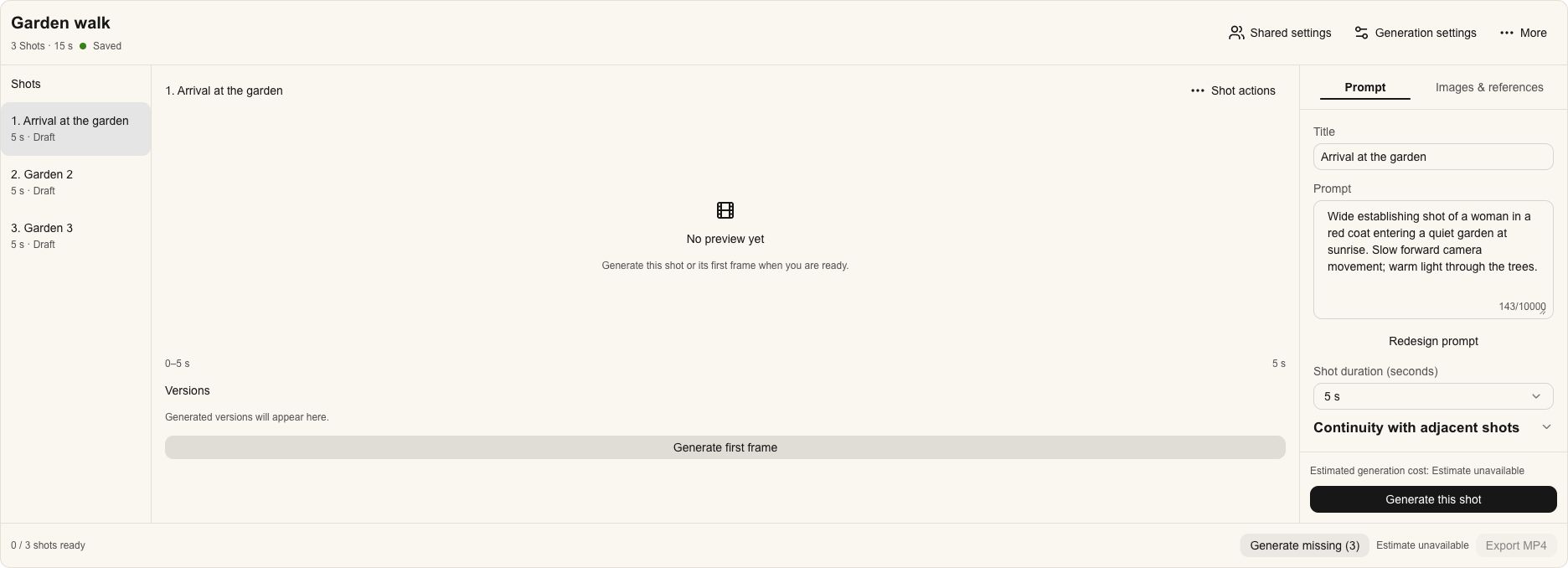
Interfaz en inglés con un guion gráfico de ejemplo antes de generar contenido multimedia.
Un flujo práctico:
- Revisa los ajustes compartidos y las instrucciones de cada plano.
- Genera un fotograma inicial si quieres comprobar la composición antes del clip.
- Genera los planos individualmente o utiliza la opción de generar los que faltan.
- Revisa las versiones y selecciona un vídeo completado por plano.
- Exporta un MP4 para unir los clips seleccionados en orden.
La exportación se ejecuta en tu dispositivo: mantén la página abierta. Si no funciona, prueba un navegador de escritorio compatible con H.264/AAC o descarga los clips por separado. La planificación se cobra aparte de la generación multimedia; revisa la estimación y los ajustes del modelo antes de empezar.
Intercambio de rostros y cabezas por lotes
La herramienta separa los retratos de origen de las imágenes de destino. El origen aporta el rostro o la cabeza; el destino es la imagen que quieres modificar. Elige intercambio de rostro o de cabeza según la zona que necesites sustituir.
Puedes subir archivos o añadir enlaces. Cada lado admite hasta 10 imágenes; las cargas aceptan PNG, JPEG y WebP de hasta 20 MB por archivo. Cada origen se combina con cada destino: dos orígenes y tres destinos producen seis resultados. Así puedes comparar retratos autorizados en distintas composiciones sin configurar cada solicitud de nuevo.

Interfaz en inglés con los dos paneles antes de añadir imágenes.
Antes de generar, revisa el número de combinaciones, el total estimado, el saldo y los ajustes del modelo. Confirma que todas las personas representadas eres tú o han autorizado explícitamente el intercambio. Después puedes seguir el progreso de cada tarea, descargar resultados completados y reintentar las tareas fallidas por separado o juntas.
Mantén la pestaña abierta mientras se ejecuta el lote. El borrador y los resultados permanecen en esa pestaña durante 24 horas: descarga las imágenes que quieras conservar. Empieza con pocas combinaciones para evaluar las entradas antes de ampliar el lote.
Mejoras para el trabajo diario
Descargas de imágenes y vídeos. Los resultados generados incluyen controles de descarga directa para guardar una imagen o un clip y llevarlo al siguiente paso de edición.
Tamaños de imagen según el modelo. La herramienta muestra formatos predefinidos según el modelo seleccionado. Elige una opción compatible en lugar de asumir que todos aceptan las mismas dimensiones; vuelve a comprobarlas al cambiar de modelo.
Diseño renovado. El estilo actualizado y los controles más claros acompañan el ciclo de introducir una idea, revisar ajustes, generar e inspeccionar resultados. Escritura, planificación de vídeo y lotes tienen controles adaptados a cada tarea.
Puedes usar estas herramientas por separado o juntas: escribe una escena breve, conviértela en un guion gráfico y genera y exporta los clips. Abre el Playground para probar tu próxima idea.